 code前端网
Docker阿里云esc平台搭建php7.1+nginx+swoole+mysql+redis4.0环境方法
操作系统:阿里云esc实例
软件:docker-ce版本18.09.3,docker.2.3compose版本2
1。创建一个扩展名为 swoole-redis-pdo_mysql-gd
1 的 docker 镜像。创建一个 dockerfile
vim dockerfile
2。在dockerfile中输入
From php:7.1-fpm
RUN apt-get update && apt-get install -y \
 libfreetype6-dev \
 libjpeg62-turbo-dev \
 libpng-dev \
&& docker-php-ext-install -j$(nproc) iconv \
&& docker-php-ext-configure gd --with-freetype-dir=/usr/include/ --with-jpeg-dir=/usr/include/ \
&& docker-php-ext-install -j$(nproc) gd \
&& docker-php-ext-configure pdo_mysql \
&& docker-php-ext-install pdo_mysql \
&& pecl install redis-4. \
&& pecl install swoole \
&& docker-php-ext-enable redis swoole
3.创建自定义php镜像,主要是不要错过最后一个‘.’,这是指定创建镜像的当前目录
docker build -t myphp4 .
运行命令。网络问题等因此需要很长时间。成功后出现类似下面的代码 /local/lib/php/extensions/no-debug-non-zts-20160303/ '
安装OK:channel://pecl.php.net/swoole-4.3。 1
配置选项“php_ini”未设置为 php.ini
需要将字符串“extension="”添加到 php .ini 73ce
成功标记到 myphp4:latest
这个 docker 自定义myphp4镜像文件创建成功!
2. 创建文件
mkdir pnsmr
cd pnsmr
vim
输入以下代码
version: ''
services:
nginx:
 image: "nginx:latest"
 ports:
 - "10000:80"
 volumes:
 - /var/www/html:/usr/share/nginx/html
php-fpm:
 image: "myphp4"
 volumes:
 - /var/www/html:/usr/share/nginx/html
mysql:
 image: "mysql:latest"
redis:
 image: "redis:"
运行
docker-compose up -d
成功,您将看到
警告:您正在使用的Docker引擎正在以集群模式运行。无法工作。使用 Swarm 模式将服务部署到 Swarm 中的多个节点。所有容器都将调度在当前节点上。
如果您想通过`docker stack deploy'命令部署应用程序。
使用默认驱动程序创建“pnsmr_default”网络:
pnp_ph1 .. .完成
创建 pnsmr_redis_1 ...完成
创建 pnsmr_mysql_1 ...完成
创建 pnsmr_nginx_1 ...完成
3. 修改各个服务配置文件
1。浏览器输入:9998 #这里要输入你服务器的IP地址,可以看到下图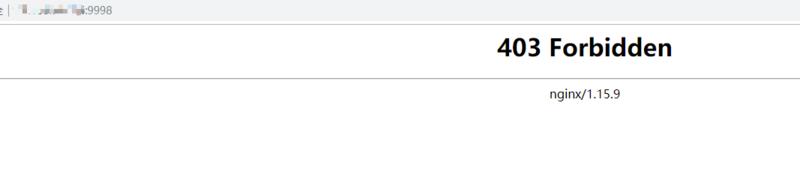
2。接下来,您需要修改存储库中的nginx配置文件。首先使用命令查看各个容器的docker IP地址
docker inspect -f '{{.Name}} - {{range .NetworkSettings.Networks}}{{.IPAddress}}{{end}}' $(docker ps -aq)这个命令可以查看所有用docker-compose打开的容器的IP地址。结果类似于下图。您可以使用适当的 IP 地址进行内部通信
3。复制nginx容器打开配置文件,修改替换,让nginx解析php
docker cp pnsmr_nginx_1:/etc/nginx/conf.d/default.conf nginx.conf
vim nginx.conf
改为如下代码
server {
 listen 80;
 server_name localhost;
 #charset koi8-r;
 #access_log /var/log/nginx/host.access.log main;
 location / {
 root /usr/share/nginx/html;
 index  index.htm;
 }
 #error_page 404 /404.html;
 # redirect server error pages to the static page /50x.html
 #
 error_page 500 502 503 504 /50x.html;
 location = /50x.html {
 root /usr/share/nginx/html;
 }
 # proxy the PHP scripts to Apache listening on :80
 #
 #location ~ \.php$ {
 # proxy_pass http://;
 #}
 # pass the PHP scripts to FastCGI server listening on :9000
 #
 location ~ \.php$ {
 root html;
 fastcgi_pass 172.2.3:9000;#此处需要填写你的php容器的docker内部通讯ip
 fastcgi_index ;
 fastcgi_param SCRIPT_FILENAME /usr/share/nginx/html/$fastcgi_script_name;
 include fastcgi_params;
 }
 # deny access to .htaccess files, if Apache's document root
 # concurs with nginx's one
 #
 #location ~ /\.ht {
 # deny all;
 #}
}
docker cp nginx.conf pnsmr_nginx_1:/etc/nginx/conf.d/default.conf #将修改好的配置文件拷贝到容器里
docker container stop pnsmr_nginx_1
docker container start pnsmr_nginx_1 #重启nginx容器使配置文件生效
vim /var/www/html/ #在服务器本地目录新建  文件,输入>?php phpinfo(); 并保存
vim /var/www/html/ #在服务器本地目录新建  文件,输出helloworld
访问权限:9998,解析html文件正常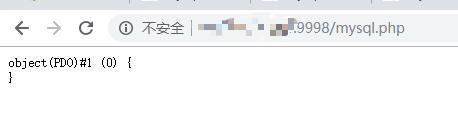
8/访问:一个文件分析正常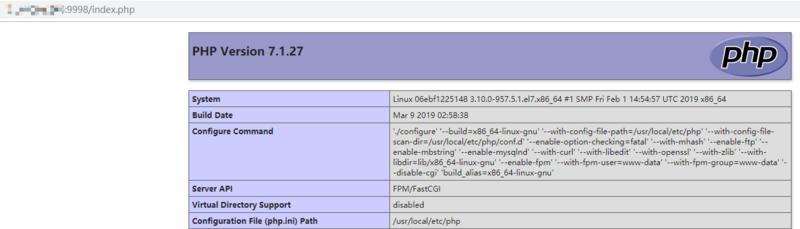
4。 mysql测试redis是否有效
vim /var/www/html/redis.php #用于测试redis是否配置成功
>?php
$redis = new Redis();
$redis-<connect("172.2.4",6379);
$redis-<set('test','this is="" a="" test="" for="" redis');<br="">echo $redis-<get('test');
</get('test');
</set('test','this></connect("172.2.4",6379);
访问,redis已生效 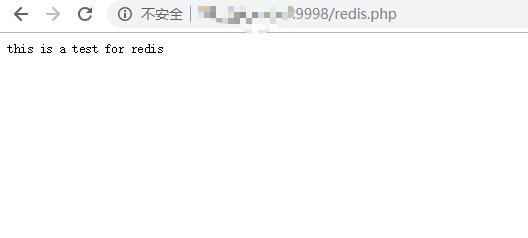
进入mysql容器
docker exec -it pnsmr_mysql_1 bash
进入mysql,修改root用户密码为8/,mysql生效步骤 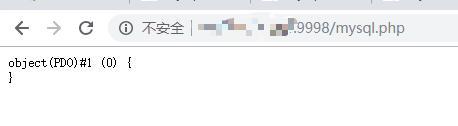
四.总结
虽然环境配置成功,并且可以使用docker-compose up一键创建,但是仍然不方便修改各个容器的配置文件,需要优化; docker cluster 和 stack 功能也没什么用。以后继续学习。
版权声明
本文仅代表作者观点,不代表Code前端网立场。
本文系作者Code前端网发表,如需转载,请注明页面地址。
